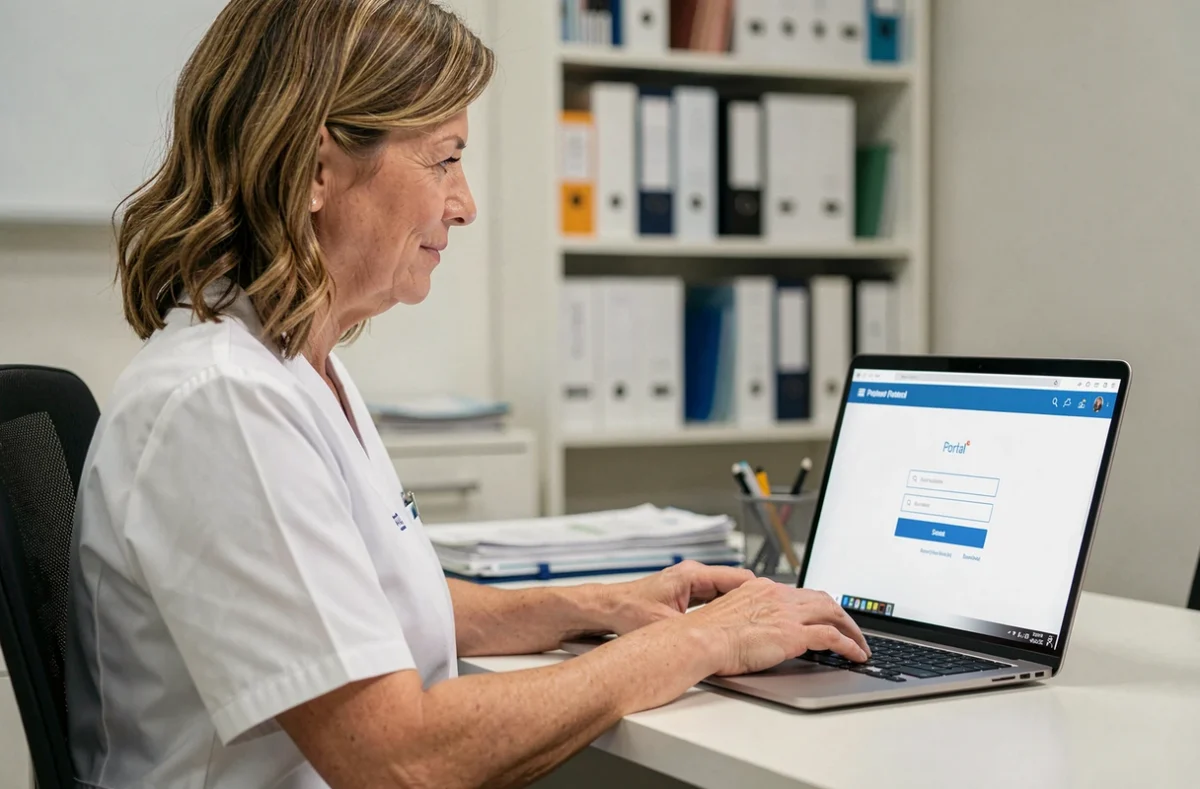
Axisanté is medical software published by CompuGroup Medical (CGM) and installed locally on the practitioner’s computer. Access to the online account is through a separate portal, the CGM Portal, which centralizes the associated digital services. Understanding the distinction between the desktop software and the online portal helps avoid most of the issues encountered during the first login.
CGM Portal and Axisanté software: two separate access points
A common source of error is looking for a login button on the CGM France corporate website, when the CGM Portal and Axisanté software are two separate environments. Axisanté is installed locally, which means it remains usable even without a stable internet connection. The CGM Portal, on the other hand, provides access to online services: profile management, software updates, the knowledge base, and technical support.
For a detailed guide to the process, see how to log in to Axisanté CGM on Le Journal du Senior, which recaps the steps with screenshots.
| Criteria | Axisanté software (local) | CGM Portal (online) |
|---|---|---|
| Type of access | Application installed on the computer | Web browser |
| Internet connection required | No (except for electronic claims and updates) | Yes |
| Login credentials | Windows account or software session | Email address and CGM Portal password |
| Main features | Patient records, calendar, prescriptions, consultations | Profile, support, password management, two-factor authentication |
| Password recovery | Through the practice’s system administrator | Through the portal’s password reset link |
First login to the CGM Portal: steps to follow
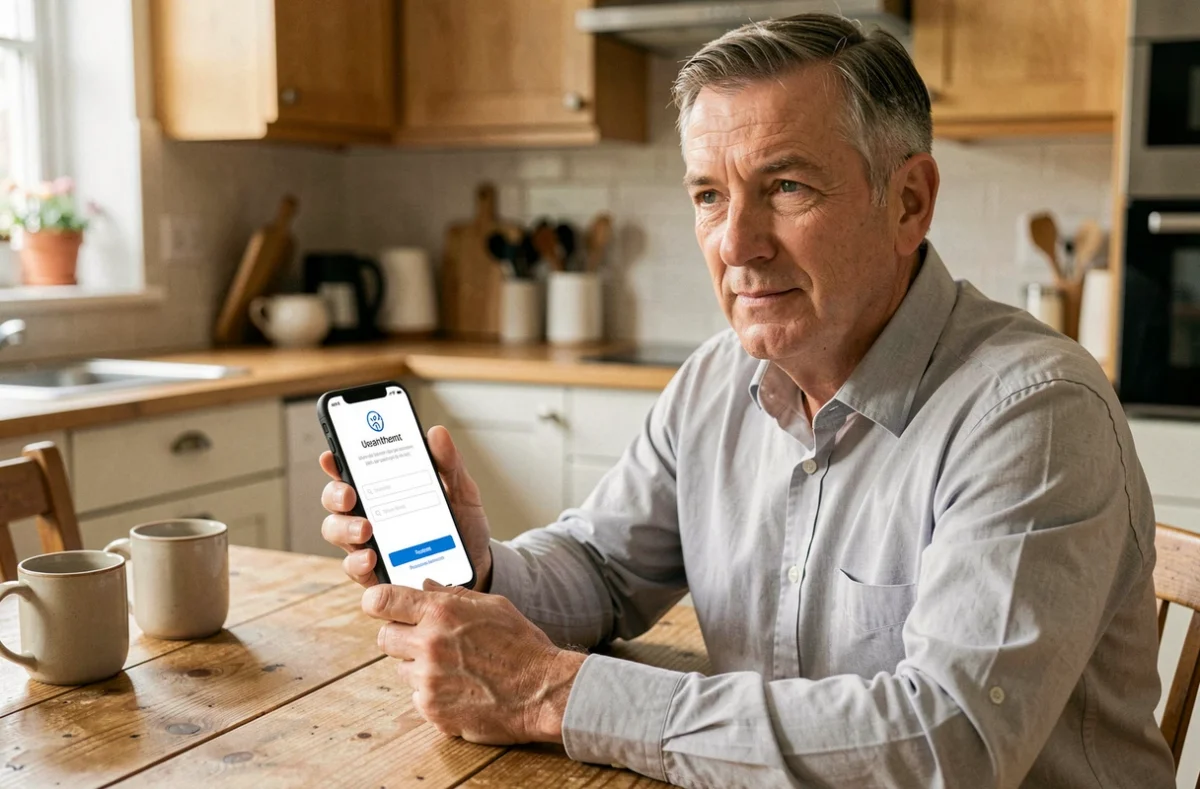
CGM’s official documentation describes a first-time login process that uses a dedicated authentication page. You will need three things: a valid email address, the temporary password received when the account was created, and acceptance of the terms of use.
Steps to link your account
- Go to the CGM Portal login page using the link in the invitation email or the “Client” section of the cgm.com website
- Enter the email address registered when you subscribed to Axisanté, followed by the temporary password provided by customer service
- Immediately replace the temporary password with a personal one that meets the portal’s length and complexity requirements
- Check that the preferred language and personal details (first and last name) shown in the “My information” section match the practitioner’s account
The temporary password can only be used once. If the session expires before you change it, contact CGM support to request a new one.
Securing your online account: two-factor authentication
The CGM Portal offers the option to enable two-factor authentication (MFA). This feature, available from the profile menu in the top-right corner under “Change password,” provides an extra layer of protection beyond an email address and password alone.
To enable it, log in and follow the portal’s instructions to link a device (phone or tablet), which will receive a verification code each time you log in from a new device. The portal also lets you register trusted devices, so you don’t have to enter an MFA code every time you sign in from a computer you regularly use.
Recovery codes and multiple devices
CGM’s documentation mentions the option to set up recovery codes. These one-time-use codes provide a backup if your primary device is unavailable (due to a malfunction, loss, or theft). Storing them in a secure location away from the practice’s computer is a basic precaution.
You can register multiple trusted devices at the same time. A practitioner working at two locations can link the computer at each practice without having to re-enter the MFA code every time they move between sites.
Lost Axisanté login details: recovery and common pitfalls
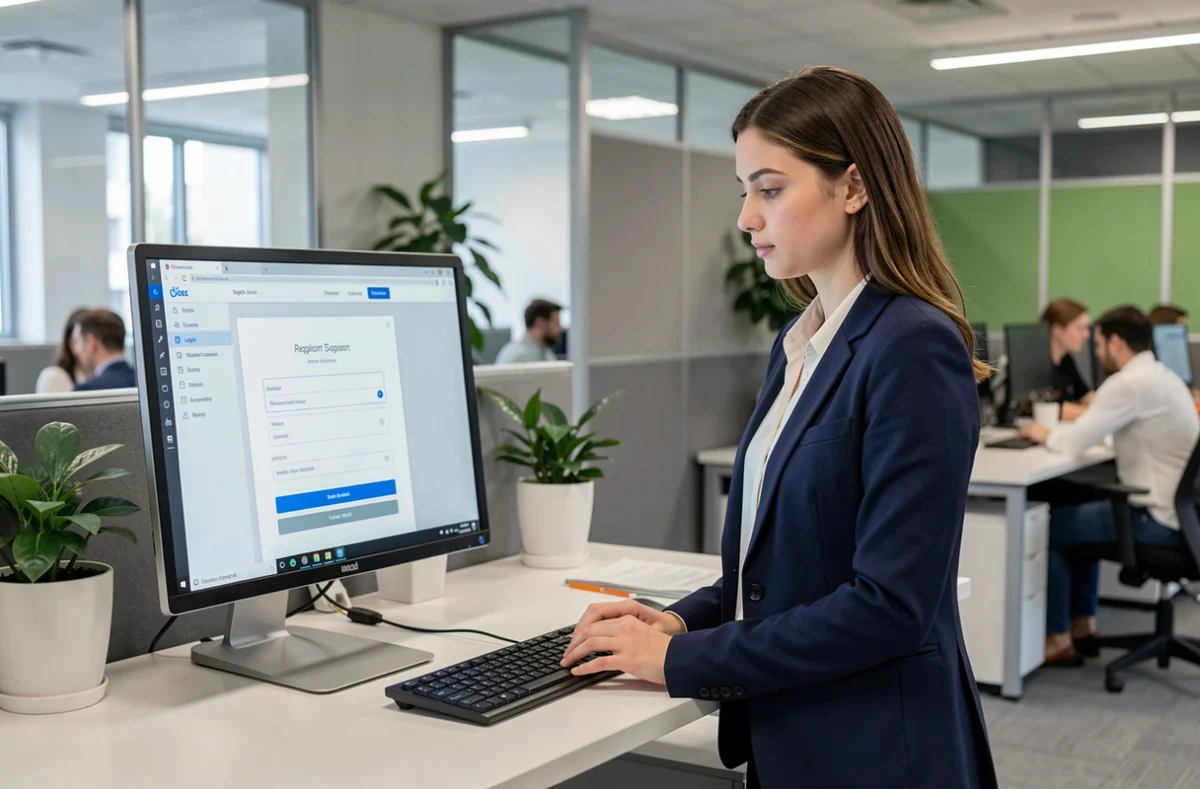
To recover a forgotten password for the CGM Portal, use the reset link on the login page. An email containing a temporary link will be sent to the address associated with the account. If that address is no longer active (for example, because you changed providers or closed the mailbox), CGM support is the only way to link a new email address to the account.
A common pitfall is confusing the login details for the locally installed software with those for the portal. Axisanté installed on a computer may use a Windows session or an internal practitioner code assigned by the practice. This code is not linked to the email address used for the CGM Portal. Trying to reset one using the details for the other will not work.
Cyber resilience and best practices for account access
Healthcare software is subject to increased cybersecurity scrutiny, underscoring the practical value of two-factor authentication and regularly changing passwords.
- Never reuse your CGM Portal password for another service (email, banking, social media)
- Make sure your browser is up to date before each login to the portal
- Store MFA recovery codes in an encrypted password manager or on a separate physical device
The distinction between the installed software and the online portal remains key. Axisanté works without internet access, but associated services (support, updates, profile management) require a connection to the CGM Portal. Keeping this distinction in mind makes every step easier, from your first login to recovering lost access.